Position
Position UI components provide simultaneous values for the X & Y axis. Commands can be sent when the value of the component is changed, touch begins or touch ends.
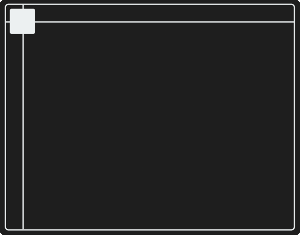
The range of values the component sends, can be defined on the Settings tab when the component is selected.
-
Position components declare the lower value to be the top/left position and upper value the bottom/right position of the handle.
-
The position value is represented in the form of an X and Y variable:
- X axis (Horizontal):
$x - Y axis (Vertical):
$y
- X axis (Horizontal):
Style
To customise the visual apperance of this component, navigate to the Style tab.
Define the:
- Persistence of the Component between specific interfaces
- Label
- Label font size
- Label style
- Label text wrap
- Theme
- Show border
- Edge style
Protocols
Under the Protocols tab, multiple protocols can be defined to send data when this component is interacted with.
Select Protocols, Variables or Modules from the dropdown.
The options this control provides are as follows:
- Change - Sends the command when a variable value is modified (i.e. the user interacts with the component).
- Touch Begin - Sends the command when the user touches the component.
- Touch End - Sends the command when the user stops interacting with the component.
 |  |  |  |
|---|---|---|---|
| Touch Ready | Touch Begin | Change | Touch End |
Touch Begin and End events are ideal for showing and hiding, elements. The video below shows these in action to show and hide a circle used for tracking position within a Notch composition. (Notch Block designed by Joss @ Meptik for Disguise at ISE 2023).
The Touch Begin event shows the circle. The Touch End event hides it. The Position variable sends live X Y tracking variables. The same logic is used by the Position component.
Protocol
To send a raw protocol command from the interface:
- Select the protocol to be sent.
- Reference a protocol patch made within Workspace Settings for the command to be sent to.
- Set the State dropdown to On Change to ensure values are sent as soon as the component is interacted with.
- Define the message to be sent. In the position where the value for the X and Y co-ordinates will be substituted in use
$x&$yvariable placeholders.
An example OSC string that transmits values as two arguments at the end of a string is: /position $x $y.
An example OSC string that transmits values as part of the OSC address is: /position/$x/$y.
Alternatively, if using the Pro Version of Ctrl Suite, select Process to route component information into a Ctrl Suite Process through an Input block for advanced logic to be applied to it.
Settings
To configure the output of the UI Component, navigate to the Settings tab.
Define the following options to modify the variable values generated by the UI component:
| Setting | Type | Description |
|---|---|---|
| Position Max | <Number> | The value output at the maxmum position. |
| Position Min | <Number> | The value output at the minumum position. |
| Position Multiply | <Number> | The value to multiply the output by. |
| Position Type | Float / Integer | The type of output value that will be output from this component. |
Interact with this component's appearance remotely with timers, external protocols or other remote logic, to lock it out, change the size, position appearance and more by creating a Process adding relevant Interface blocks in combination with a Render Component block.